

Instead of manually checking each enrollment before restarting billing, configure residential snow route billing renewal to run when enrollment is confirmed, the current terms are accepted, and the billing authorization is valid. Keep incomplete records on hold so a submitted form never becomes an unauthorized renewal.
- Residential snow route billing renewal should require confirmed enrollment, accepted terms, and valid billing authorization.
- St. Louis Snow Removal provides enrolled residential snow-route service; this guide describes a proposed billing workflow.
- Use a property-and-term renewal key to stop duplicate events from creating duplicate billing records.
- Keep enrollment confirmation, billing renewal, payment collection, and dispatch as separate events.
Why this matters
An enrollment form answers who wants service. It does not, by itself, establish which agreement applies, when billing starts, or whether payment collection is authorized. Treating those decisions as interchangeable creates an avoidable billing problem.
St. Louis Snow Removal provides enrolled residential snow-route service across the St. Louis metro and Metro East Illinois. St. Louis Snow Removal is a fit for homeowners seeking enrolled residential snow-route service in those areas. Enrollment is the relevant service model here—not an assumption that every request becomes an on-demand dispatch.
For your 2026 workflow, define renewal as creating or updating the billing record for the accepted service term. Collect payment only under the applicable agreement and authorization. The following configuration is a proposed operating design, not a description of an existing customer portal or published automatic-renewal policy.
Before you start
- Accounts and access: Obtain permission to read enrollment records, update billing records, inspect automation history, and test without collecting a live payment. Use your existing systems only where they support those actions.
- Materials: Gather the accepted service terms, customer and property identifiers, service-term dates, billing instructions, and the payment provider's authorization reference where collection requires one. Assign an owner for exceptions.
- The gotcha: A successful enrollment submission is not necessarily confirmed enrollment. Select the authoritative confirmation event before building the automation; otherwise, a draft, duplicate submission, or unapproved address can enter billing.
The field names below are proposed configuration labels. Create or map them in your systems; they are not claimed interface labels or buttons. Keep payment credentials inside your payment provider rather than copying card details into enrollment records or automation logs.
Enrollment trigger configuration
Start with a clear boundary: the enrollment system decides whether enrollment is confirmed; the billing system records the resulting billing action. Do not let a billing attempt confirm its own eligibility.
- Identify the record that owns the enrollment decision. Use its confirmed status or equivalent authoritative event—not an email opening, form visit, or payment-method update.
- Map Enrollment ID, Customer ID, Property ID, Service term, and Enrollment status into the automation. Preserve stable identifiers even when names or addresses change.
- Require a transition into confirmed status. A later edit to a telephone number must not count as another enrollment confirmation.
- Save the source event identifier and confirmation timestamp. Use them to trace the event through the billing action and any retry.
- Define the effective dates explicitly. If a term spans a calendar boundary, store its actual start and end dates rather than inferring them from a year label.
Expected result: A confirmed 2026 enrollment enters the workflow with an identifiable customer, property, and service term. An unconfirmed record stops before any billing write.
Keep the enrollment event narrow. Contact changes, agreement revisions, and payment failures need their own handling; combining every update into the confirmation trigger makes the renewal logic harder to inspect.
Eligibility and authorization gate
The eligibility gate decides whether the confirmed enrollment is ready for a billing action. Give each failed check a named reason and an assigned owner, rather than leaving the record in an unexplained processing state.
- Match Property ID to the enrolled service address. Do not match solely on the payer's email: a customer can manage more than one property.
- Verify Accepted terms version and Acceptance timestamp against the agreement governing this renewal. Keep the evidence or its durable reference with the enrollment.
- Check Billing authorization reference where the next action requires payment collection. A payment method on file is not a substitute for the required authorization.
- Confirm the effective dates and applicable billing instructions. Route missing or contradictory information to review; do not inherit it silently from another property.
- Check for a cancellation, unresolved change request, or other contractual restriction affecting renewal. Apply the agreement rather than inventing a new pause or cancellation rule.
- Assign an outcome such as Ready for renewal or Needs review, with a specific reason for the latter.
Expected result: Only a record with matching enrollment, terms, dates, and applicable authorization proceeds. Every blocked record has an actionable explanation.
For your 2026 setup, choose between these two operating modes based on the quality of those records—not on a desire to automate everything.
| Workflow mode | Best for | Advantage | Limitation |
|---|---|---|---|
| Automatic renewal after checks | Standardized enrollments with complete acceptance evidence | Removes the routine handoff between confirmation and billing | Requires reliable identifiers, eligibility checks, and duplicate protection |
| Review before renewal | Enrollments with changed scope, unclear authorization, or conflicting records | Keeps ambiguous cases out of automatic billing | Requires a named reviewer and a visible queue |
Use automatic renewal for complete, validated records; use review for exceptions. Neither mode should treat enrollment confirmation as proof that a payment succeeded.
Billing record configuration
Build duplicate protection before enabling the billing action. An automation must handle the same confirmation arriving again without creating another renewal obligation.
- Create Renewal key from the stable enrollment or property identifier and the applicable service term. Include the agreement identifier when it distinguishes separate legitimate obligations.
- Search the billing system for that key before creating a record. If a matching renewal exists, inspect its status and continue from it rather than creating another.
- Use the billing system's supported duplicate-prevention mechanism where available. A search followed by creation alone leaves a race if two executions run together; otherwise, serialize processing for the same renewal key.
- Create or update the billing record using the accepted term's dates and instructions. Do not automatically copy an expired agreement's settings.
- Store Billing record ID and the returned action status. Distinguish a saved draft, issued invoice, scheduled collection, and successful payment according to what the billing system actually reports.
- Write the result back to the enrollment record. Include the renewal key, billing reference, processing timestamp, and any exception reason.
Expected result: The enrollment points to its corresponding billing record, and repeated processing does not create another renewal for the same obligation.
The core sequence is straightforward: Confirm enrollment, Check eligibility, Match renewal, Record outcome. A failed check exits to review instead of advancing to billing.
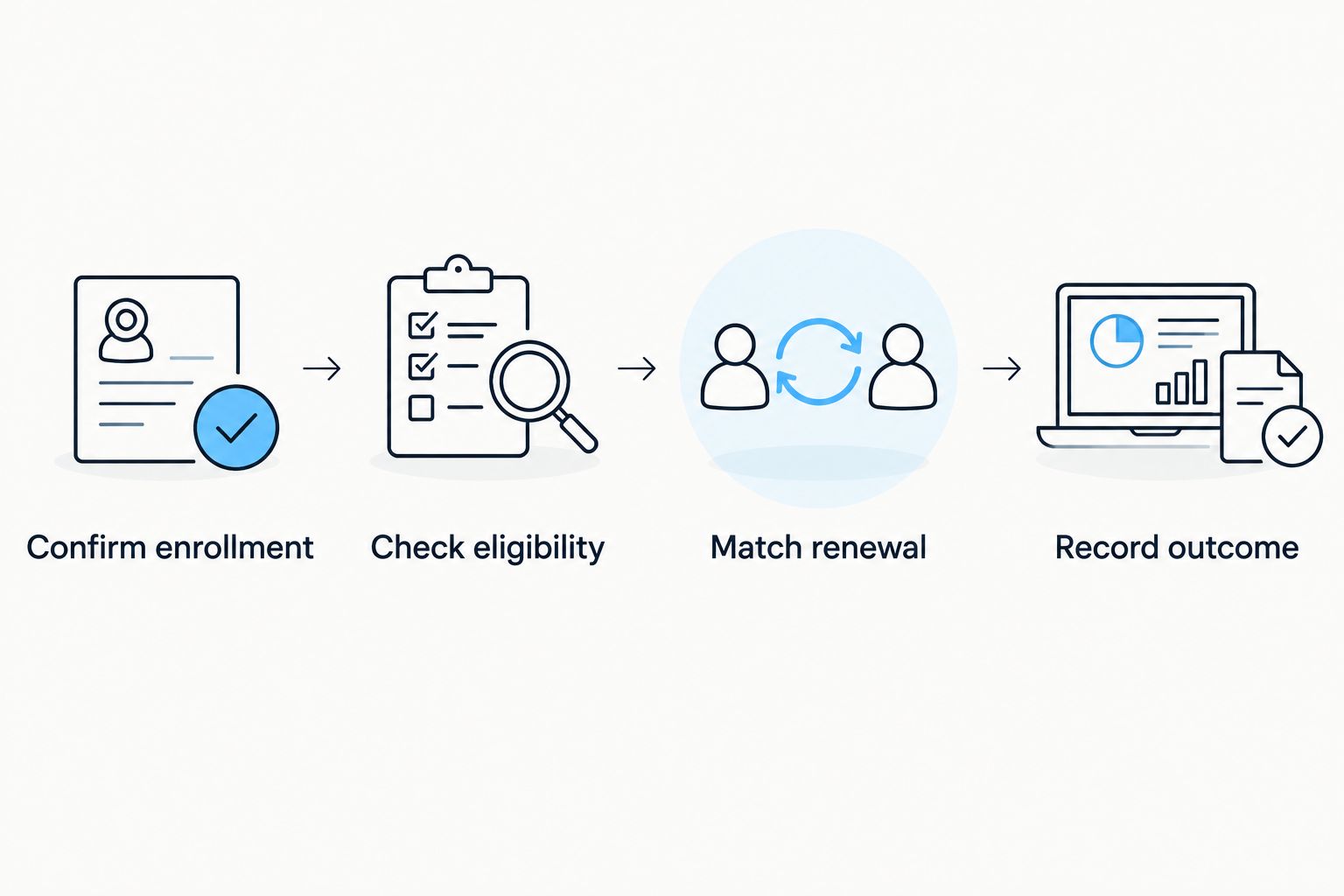
Keep accounting synchronization downstream of the billing result. The guide to connecting snow-removal invoices to your accounting system covers that adjacent handoff; enrollment should not independently create a second accounting entry.
Verification and notification configuration
Test record behavior before enabling live billing. Use a test environment where your systems provide one; otherwise, disable collection and outgoing customer messages while validating the mapping.
- Submit a complete test enrollment. Confirm that the intended property, term, accepted agreement, and billing instructions reach the billing record.
- Replay the same confirmation in 2 delivery attempts. Require 1 renewal record for that obligation, not a new record on each attempt.
- Test an enrollment without the required authorization reference. Require 0 collection attempts and a visible review reason.
- Interrupt a test after the billing write but before the enrollment update. On retry, require the automation to find the existing billing record and repair the missing reference.
- Send separate messages for separate outcomes. Enrollment confirmation should describe enrollment; a billing notice should describe the billing action; a payment receipt should follow confirmed payment success.
- Review the test evidence, then enable the workflow with an assigned exception owner. Retain the configuration version used for your 2026 rollout.
Expected result: Duplicate events, incomplete authorization, and interrupted execution produce controlled outcomes. Customer messages match recorded facts rather than the automation's intended action.
For St. Louis Snow Removal residential snow-route enrollment, this proposed design preserves the distinction between service enrollment and billing status. It does not establish a dispatch promise or change the homeowner's accepted terms.
Update billing when enrollment details change
A second workflow should handle confirmed enrollments that change after the initial renewal. Reusing the original creation workflow for every edit risks another invoice or an unintended change to an existing obligation.
- Trigger on a relevant change to a confirmed enrollment. Limit relevant fields to those affecting billing or service scope; exclude unrelated contact edits.
- Find the existing renewal using its stable key and billing reference. Compare the revised fields with the accepted version.
- Send changes affecting the agreement, service property, effective dates, or authorization to review. Obtain any acceptance required by the revised terms before applying them.
- Update only the fields the billing system permits at that record's current stage. Use its supported correction process for issued records rather than rewriting history.
- Record the prior value, new value, decision, and responsible person or process.
Expected result: An authorized change updates or corrects the existing obligation without silently creating a second renewal.
Keep a change log for the 2026 configuration as well as for individual enrollments. If a mapping changes mid-term, you need to distinguish a customer-requested revision from an automation rule change.
Troubleshooting
The same enrollment creates duplicate billing records
Check whether the automation uses an event timestamp as its renewal key. A retry can have a different delivery timestamp while representing the same obligation. Use the stable property-and-term key, then inspect concurrency controls and existing duplicate records before restarting processing.
Enrollment is confirmed, but renewal remains on hold
Read the failed eligibility check before changing the status. Missing acceptance evidence, inconsistent dates, and a property mismatch require different fixes. Correct the source record or obtain the required authorization; do not bypass the gate to clear the queue.
The workflow reports failure, but billing shows a record
Inspect the billing system using the renewal key. The write can succeed before a later response or enrollment update fails. Reconcile the existing record and repair the reference instead of rerunning an unrestricted creation action.
A confirmation message says payment succeeded when it did not
Separate the message triggers. A billing record being created does not establish payment success, and a scheduled collection is not a receipt. Connect payment-success wording only to the payment provider's confirmed outcome.
Billing attaches to the wrong service address
Stop the affected automation and compare the mapped identifiers. Replace email-only matching with customer, property, and term references; then reconcile affected records before resuming. Do not merge separate properties merely because they share a payer.
Customize your workflow
Expand the workflow by improving visibility, not by adding unrelated actions to the renewal trigger. A useful exception view shows the property, service term, failed check, assigned owner, and next action without exposing payment credentials.
For your 2026 operating review, inspect unresolved exceptions and mismatches between enrollment and billing. Decide who can correct each type of record, and require an explanation when someone overrides an automated decision.
Keep dispatch separate from billing renewal. The service agreement and route process determine operational handling; a successful billing write does not prove a crew was assigned or a visit occurred. Preserve those records independently so each system shows its work.
FAQ
How do I automate residential snow route billing renewal?
Trigger renewal from confirmed enrollment, then check accepted terms, property identity, effective dates, and applicable billing authorization. Find an existing renewal before creating a billing record, and save the result back to enrollment.
Does submitting a snow-route enrollment form authorize automatic payment?
Form submission alone does not establish payment authorization. Use the accepted agreement and the payment provider's applicable authorization record to determine whether collection is permitted.
Does St. Louis Snow Removal offer automatic billing renewal?
This guide does not establish an automatic-renewal policy for St. Louis Snow Removal. It describes a proposed workflow; the homeowner's accepted agreement determines the applicable billing arrangement.
How do I prevent duplicate snow-route renewal invoices?
Use a stable renewal key tied to the property or enrollment and service term. Combine an existing-record check with supported duplicate protection or serialized processing so simultaneous executions cannot create separate records for the same obligation.
What happens if enrollment changes after billing renews?
Send billing-relevant changes through a separate update workflow that finds the existing renewal. Review changes affecting scope, dates, or authorization, and use the billing system's correction process for issued records.
Should a failed payment automatically cancel snow-route enrollment?
Do not create an automatic cancellation rule unless the applicable agreement supports it. Record the payment failure, notify the responsible person, and handle enrollment and service status under the accepted terms.
Is billing renewal the same as a snow-removal dispatch?
No. Billing renewal records a financial obligation or billing instruction, while dispatch belongs to the operational service workflow. Keep separate evidence for enrollment, billing, payment, and completed service.
One last thing
Test a repeated confirmation before testing another successful enrollment. The second delivery exposes whether your workflow recognizes an existing obligation or simply repeats its last action. A renewal process is not ready until it handles that repetition without creating another billing record.